Prefer command-line recording? See Screen Recording with FFmpeg.
You’re free to use any screen recording software of your choice, but we strongly recommend using Open Broadcaster Software (OBS).
Default built-in tools, such as Windows Snipping Tool, Xbox Game Bar, and the macOS screen recorder, typically produce large video files, potentially exceeding 10GB for the full duration of the contest.
Online screen recorders also face large memory limitations and typically have recording time caps of up to one hour, while requiring a stable internet connection.
OBS lets you customise your recording settings, allowing for a lower bitrate and frame rate, which reduces the file size. With the configuration that we recommend in this guide, a four-hour recording will have a file size of around 400MB (ensure that you have at least 2GB of storage before recording).
The rest of this guide will walk you through downloading and setting up OBS.
Installation
Windows
- Download: Go to the official OBS Studio download page and download the installer.
- Run Installer: Once the download is complete, open the downloaded file (usually located in your Downloads folder) and double-click the installer to begin the setup process.
- Install: Follow the installation wizard by clicking Next, then click Install.
macOS
- Download: Go to the official OBS Studio download page and select macOS.
- Open Installer: Once downloaded, open the .dmg file.
- Install: Drag OBS Studio into the Applications folder.
- Grant Permission: Go to System Settings -> Privacy & Security -> Screen Recording, and enable OBS Studio.
macOS (Homebrew alternative)
- Install Homebrew: Open a terminal and run
/bin/bash -c "$(curl -fsSL https://raw.githubusercontent.com/Homebrew/install/HEAD/install.sh)"
- Install OBS: In the terminal, run
brew install --cask obs
Linux (Ubuntu)
- Install OBS: Run the following commands in your terminal.
sudo add-apt-repository ppa:obsproject/obs-studio
sudo apt update
sudo apt install obs-studio
Usage
Once you have OBS installed, follow these steps to configure and start your recording.
- Launch: Open OBS Studio on your computer.
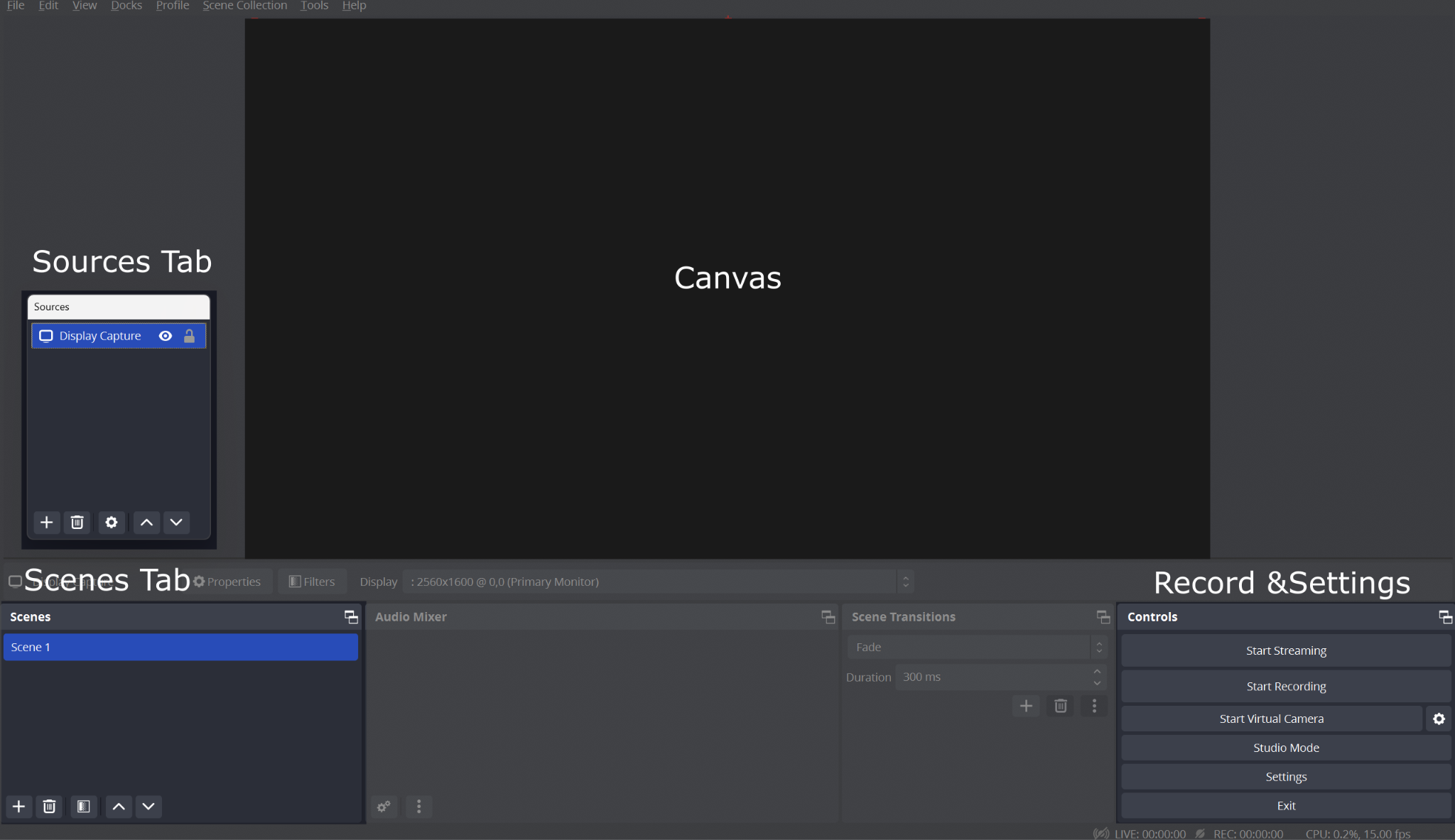
- Create scene: Click the ‘+’ button in the Scenes panel and create a new scene.
- Add display capture: In the Sources panel, click ‘+’ then select Display Capture (or Screen Capture in Linux), and click OK. (Note: Use Display Capture only. Do not use other capture methods).
- Add multiple display captures (for multi-screen users only): Repeat Step 3 to add additional Display Capture sources. Arrange the sources on the canvas so that all screens are clearly visible in the recording.
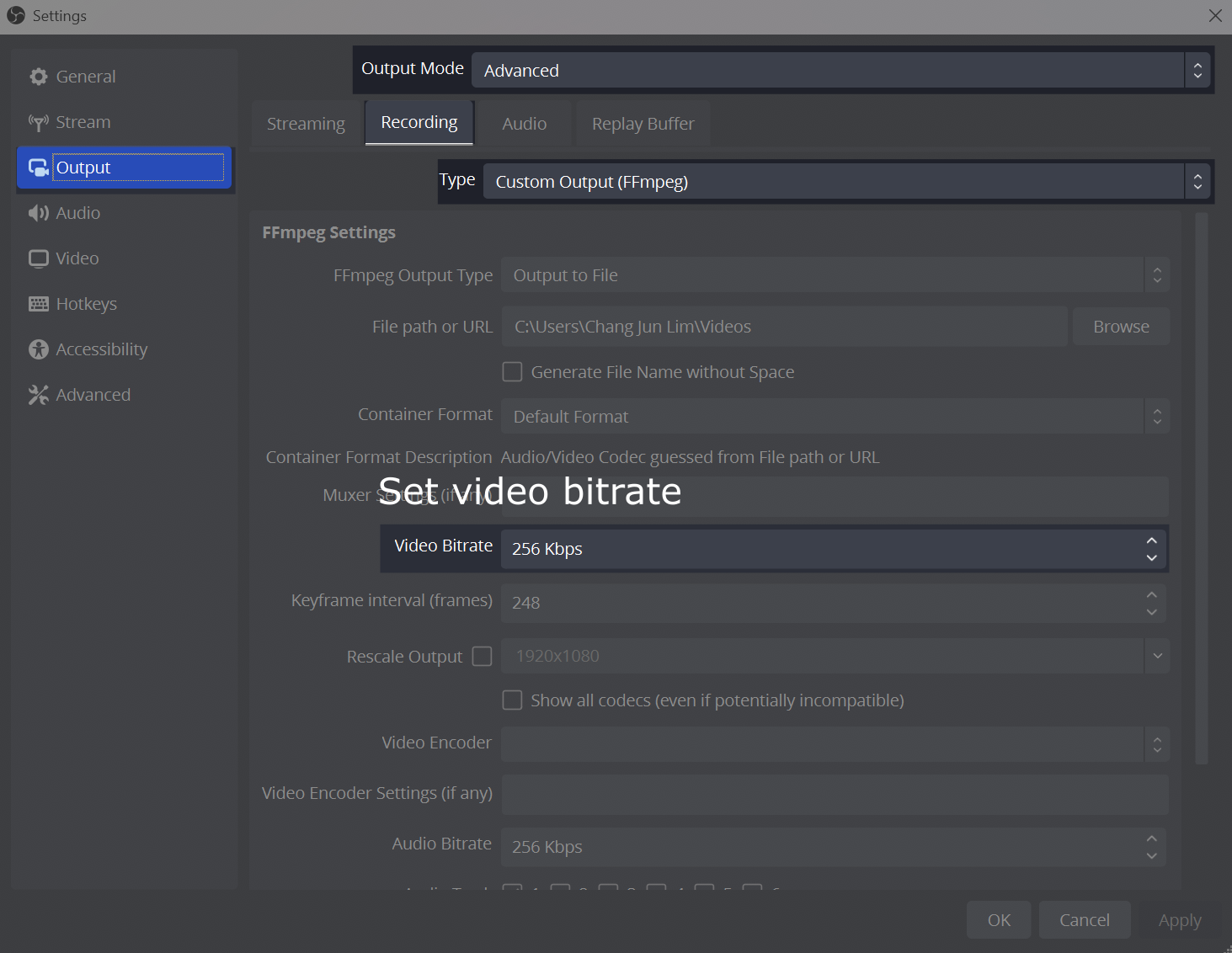
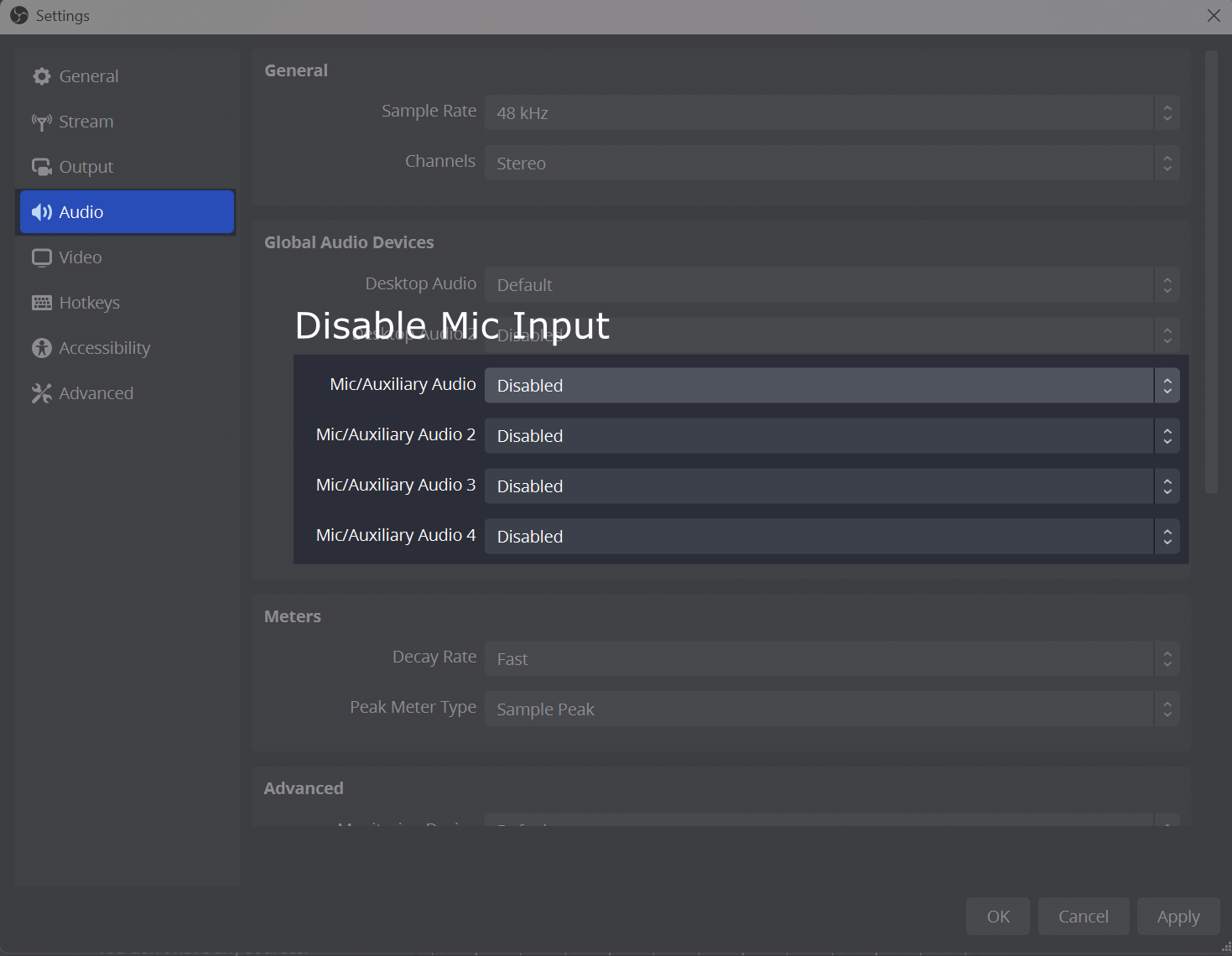
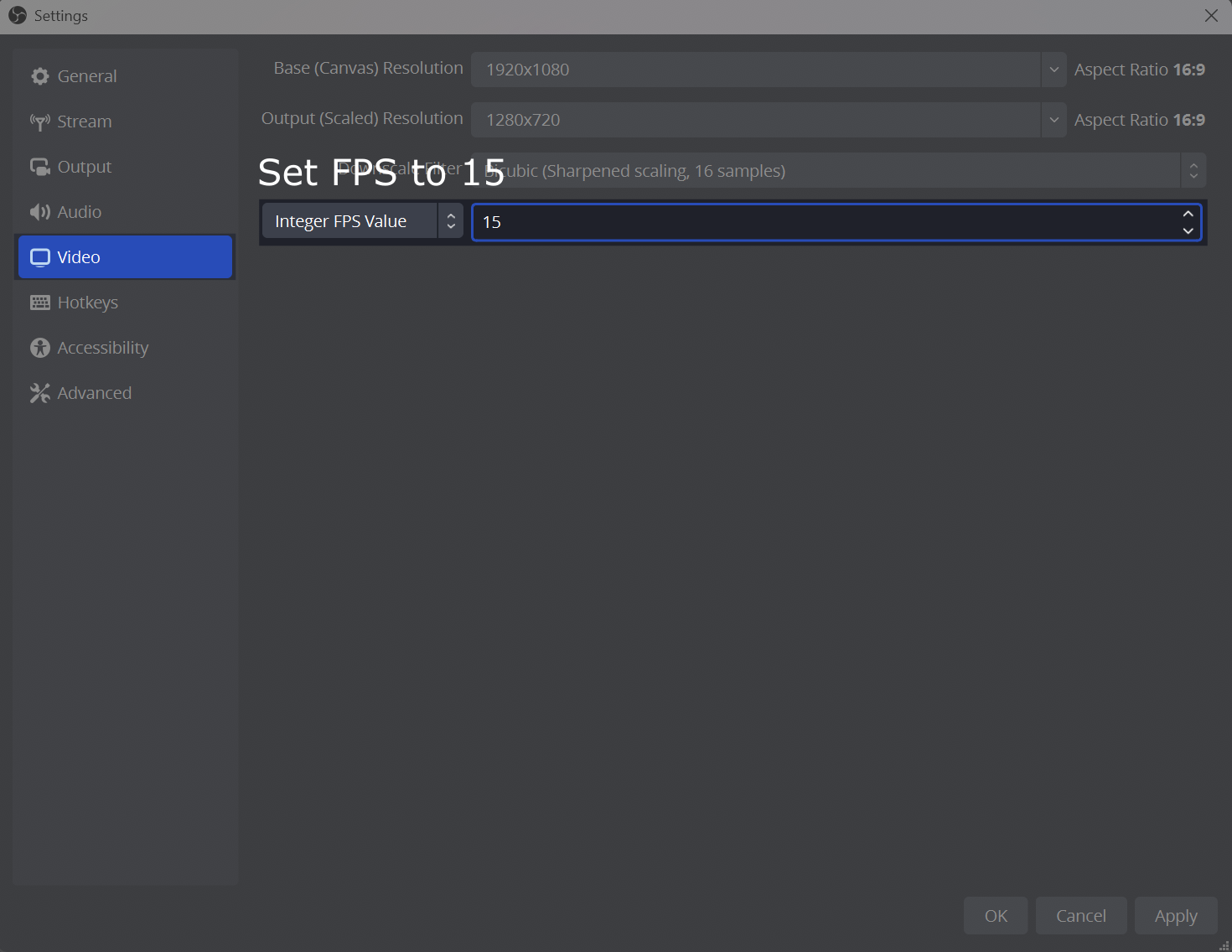
- Settings: Go to Settings (on macOS, click the menu bar, then OBS -> Settings) and apply the following:
- Output: Change Output Mode to Advanced. Under the Recording tab, set Type to Custom Output (FFmpeg), then set the Video Bitrate to 256 kbps.
- Audio: Under Global Audio Devices, disable all Mic/Auxiliary Audio Inputs
- Video: Set the FPS value to 15
- Remember to click Apply!
- Start recording: Click Start Recording in the bottom-right corner.
- Fit to full screen: Right-click on Display Capture in the Sources panel, then click transform and select fit to screen.
- Stop recording: Click Stop Recording when finished.
- Locate recording: Go to File -> Show Recordings to open the folder containing your video.
Please refer to the screenshots below for a visual guide on how to configure OBS.
Prefer a command-line setup? See Screen Recording with FFmpeg.